Cover art
Turn your release idea into album cover art
Build square artwork around the title, artist name, colors, and references for your release. Generate it in LYRC and keep the results together in your cover-art gallery.
Start freeProduct details reviewed September 27, 2026
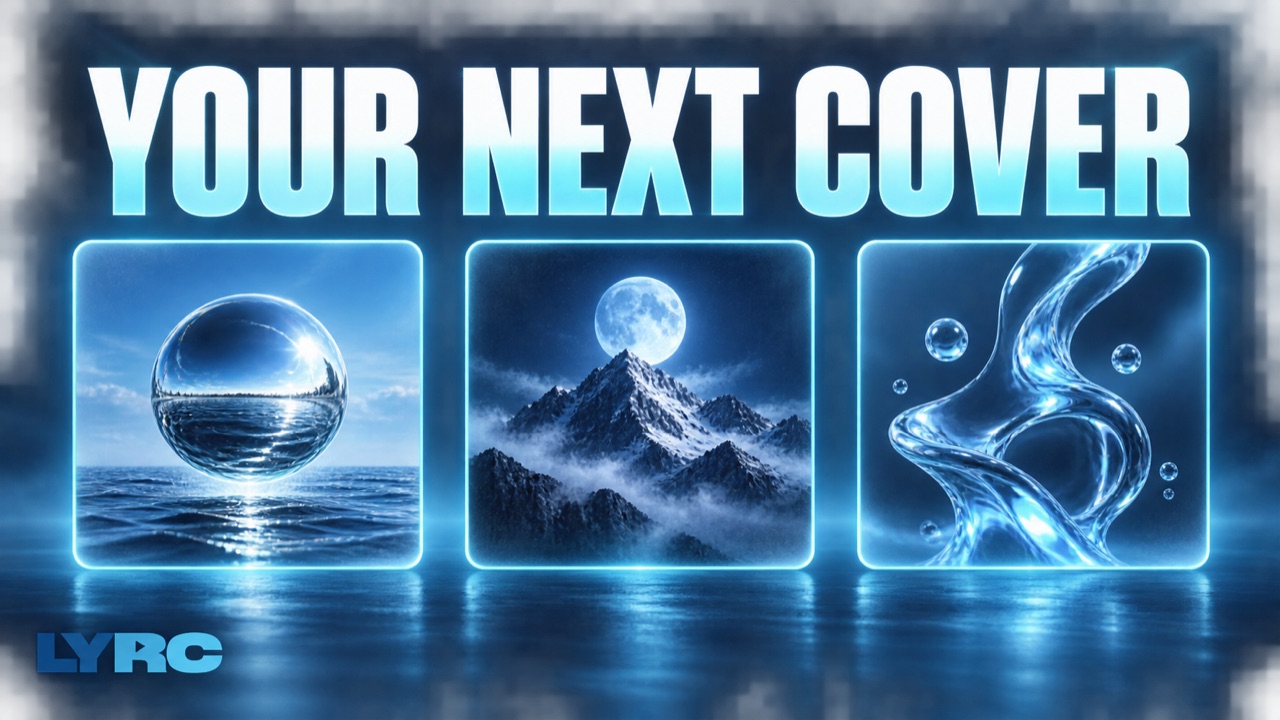
LYRC feature illustration.
An album cover needs a clear visual idea before it needs a prompt. Start with the feeling of the release: a scene, a subject, a texture, or a color palette. LYRC’s Cover Art screen combines that direction with release-specific controls so you can review artwork for a single, an EP, or an album.
What you can make
A square canvas for the release
Cover Art uses a 1:1 canvas. Choose a model and its available resolution options, with support up to 4K on compatible models. The cover-art workflow keeps the square format instead of asking you to crop an unrelated video frame.
Title and artist-name controls
Enter the release title and artist name separately from the scene description. These are included in the generation request so the lettering can be part of the artwork. AI lettering still needs checking for spelling, spacing, and readability.
References and a focused palette
Upload reference images to guide the look, and choose up to two colors. Reference limits vary by model. References are visual direction rather than a promise of an exact copy, and you should have permission to use the images you provide.
Choose the model for the job
The screen offers GPT Image 2, Nano Banana variants, and Seedream 4.5. Model, resolution, and supported quality settings affect the credit cost. Check the displayed amount before generating, then compare your results in the gallery.
Make the artwork fit the release
Describe the visual idea
Write a concrete scene and mood. For example, a solitary figure under a blue streetlight with grain and room for the title.
Add the release details
Fill in the title and artist name, choose your colors, and add references if they help. The Parental Advisory option requests that treatment when you need it.
Choose settings and review the cost
Pick the model and a supported resolution. Review the generation’s credit cost before starting. You can use Cover Art without first creating a song template.
Inspect the finished image
Check names, title lettering, proportions, and small details. Look at it as a small square as well as full-size, then download the result from your gallery.
Generate with enough available credits; costs vary with the selected settings. The image is an artwork asset, not a music distribution submission. Check your distributor’s current artwork requirements before uploading, and verify that any imagery or type you use is appropriate for your release.
Check current plans and allowances, or read the lyric-video guide to put your song, words, and footage together.
Common questions
Can I make single artwork as well as an album cover?
Yes. Cover Art produces square artwork and lets you enter the title and artist name for the release. The same workflow can be used for a single, EP, or album.
Can I put my release title in the generated image?
Yes. Use the title and artist-name controls. The text becomes part of the generation request. Review the finished lettering because AI can still make spelling and layout errors.
Do all models generate 4K cover art?
No. Resolution options depend on the model. Choose a compatible model and inspect the available settings for up to 4K output.
Do I need lyrics or a song template first?
No. Cover Art works independently. It spends credits per generation, and the selected model and settings determine the displayed cost.
Make music. Not content.
Set up lyrics and timing once, then use the same song template for your next video.
Start free