Guides
How to Make a Music Video With No Budget
No money for a shoot? Use phone clips, footage you already have and stock, with on-screen lyrics cut on the beat for Reels, TikTok and Shorts.
Start free
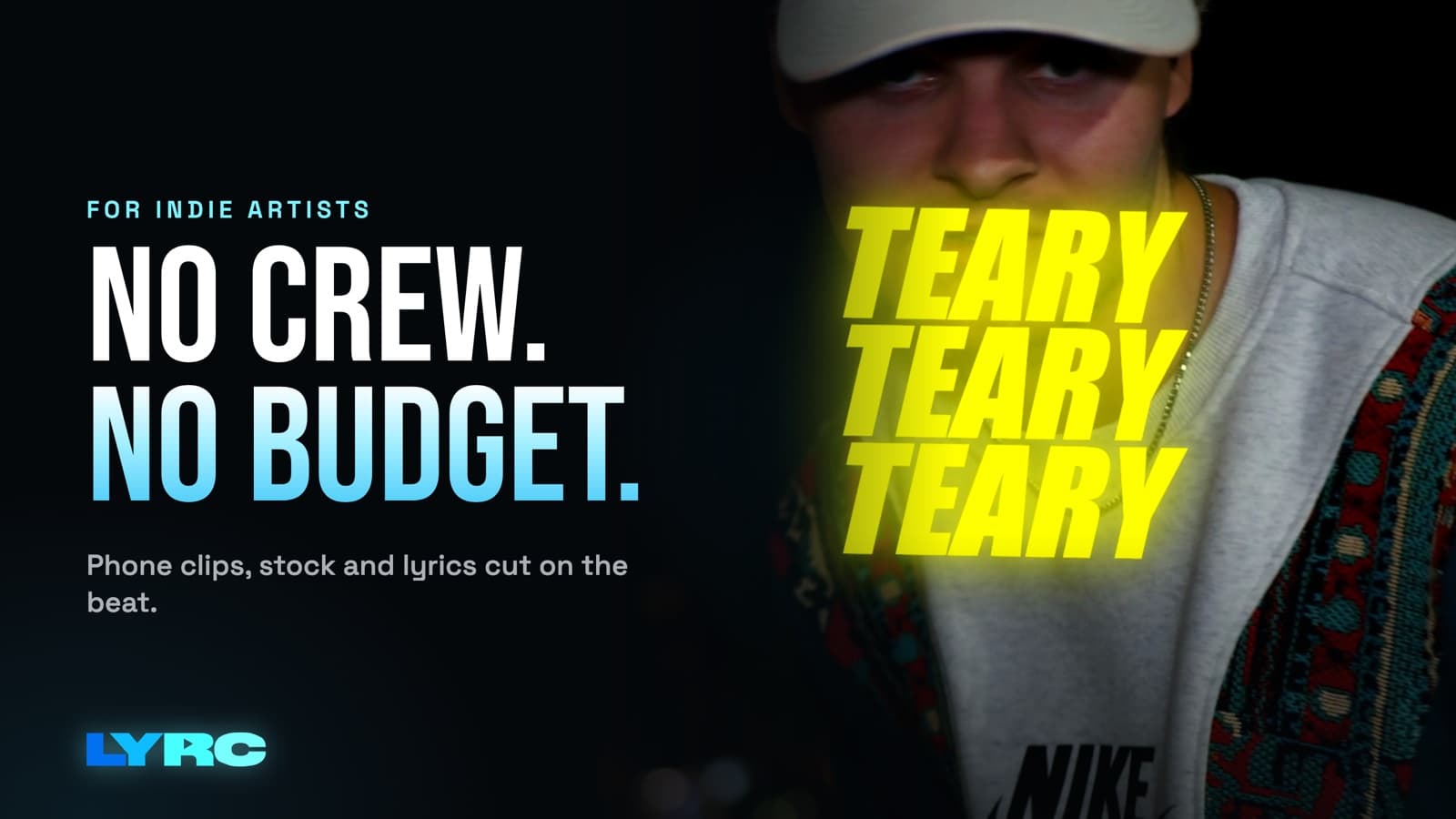
Shoot short clips on your phone, add footage you already have, and cut everything to one section of your song instead of the whole track. That's how to make a music video with no budget that people actually watch. Pick the hook, since a 15 to 30 second section is what gets reused on TikTok and Reels. Film or gather more clips than you think you need. Put the lyrics on screen, and change clips on the kicks and claps so cheap footage looks deliberate. The lyrics do a lot of the work: people read along, so your visuals don't have to carry the whole video.
Below are the footage sources that cost little or nothing, how to shoot phone clips that cut well, and the exact order I'd build it in tonight.
What should you make when you have no budget?
Make short promo videos of one song section. A full video needs a concept, locations, a crew or a lot of your own time, and a full edit. A 20 to 45 second lyric video of your hook needs your phone and one evening.
Short videos also fit how songs get found now. Reels, TikTok and Shorts are all vertical (9:16, 1080x1920), and the clip people hear is one section of the song. You'll get more use out of several short videos of the same hook with different footage than out of one long video you never finish. To make several versions without redoing the setup, see creating templates.
Where do you get footage without paying for a shoot?
I go deeper on each one in where to get footage for lyric videos, but here's the short version.
Your phone
This is the best source because it's you. Put yourself in the footage. Driving at night, the studio, your block, your room with the lights off, a friend walking ahead of you. Pick places and moments that match the mood of the song; polish matters less than fit.
Footage you already have
Go through your camera roll before you film anything new. Studio sessions, show clips, behind-the-scenes, old visualizers, random video from trips. Clips that felt too boring to post on their own often work fine as two seconds of b-roll under a lyric.
Stock footage
Licensed stock fills the gaps: city lights, rain, smoke, crowds, nature. It's good for mood. Lean on it for texture and keep your own face and world in the mix so the video doesn't look generic.
Clips pulled from a video link
If you already have long videos on YouTube or TikTok (a live set, a vlog, an old music video), you can cut them into short clips and reuse them. Be careful with anything that isn't yours. Using clips from films, shows or other people's videos can draw copyright claims or get your audio muted on some platforms. Your own footage, licensed stock and AI b-roll avoid that.
AI b-roll
When you can't film a scene (a desert, a burning car, a rooftop in the rain), AI video can make it. It isn't zero cost: in LYRC it uses credits, and the cost shows before you generate. Treat it as a way to fill one or two shots you couldn't get otherwise. The walkthrough is in AI video and b-roll.
How do you shoot phone footage that cuts well?
Cheap footage looks cheap when it's shaky, dark and shot in one spot. These habits fix most of that:
- Shoot vertical if the video is for Reels, TikTok or Shorts. Shoot horizontal (16:9) only if it's going on YouTube's main player.
- Face the light. Stand facing a window or a streetlight. Light behind you turns you into a silhouette.
- Hold every shot longer than feels natural. A few extra seconds gives you room to trim. You'll only use a second or two of each clip, so you want options.
- Move the camera on purpose. A slow walk, a push toward your face, a pass across the room. Small, steady moves look better than shaky handheld.
- Change spots often. Ten clips from five places beat ten clips from one corner. Variety covers for missing polish.
- Leave room for the words. Lyrics usually sit in the middle of the frame. Very busy shots behind the text make it hard to read.
- If you're lip-syncing, play the song out loud while you film so your mouth matches the words.
Which part of the song should the video use?
Use the hook first. It's the part people remember and the part most likely to get reused as a sound. After that, try the strongest verse line or the first chorus with the beat drop in front of it. Each section can become its own series of videos.
Keep each one between roughly 15 and 60 seconds. Shorter is easier to watch to the end.
Why a lyric video is the strongest no-budget format
With no budget, your footage won't compete with a real shoot. On-screen lyrics change that. The viewer reads along, the words land on the beat, and the clips behind them become mood instead of the main event. A clip of you walking under a streetlight is plain on its own. Under a well-timed line from your hook, it works.
Watch these two details:
- The lyric timing has to be right. Words showing up early or late look sloppy.
- Cuts have to land on the beat. Changing clips on the kick or clap is what makes random footage feel edited.
How to make one tonight, step by step
This works in any editor. Adjust for whatever tool you use.
- Trim the song section. Export just the hook as its own audio file, or set in and out points.
- Pick your clips. Gather more clips than you'll have cuts. Mix you, your world, and a few mood shots.
- Time the lyrics. Put each line (or each word, for a punchier look) on screen as it's sung. Fix names, slang and ad-libs by hand.
- Mark the beat. Drop a marker on each kick and clap you want a cut on.
- Place a clip between each pair of markers. Don't repeat a clip until you've used the others.
- Style the text so it reads on a phone. Big, bold, with an outline or shadow so it holds up over bright footage. Keep it away from the very bottom, where app buttons and captions sit.
- Export an MP4 at 9:16 for vertical apps.
- Make a second version with different footage over the same audio and lyrics. A second version keeps the same audio, lyric timing and cuts, and only the footage changes. See creating templates for how LYRC carries that over.
Mistakes that make a cheap video look cheap
- Starting with the full song. You'll run out of footage and energy around the second verse.
- Clips that ignore the beat. Cuts that land between hits feel random.
- Text that's too small or too thin. If you can't read it at arm's length on your phone, nobody will.
- Movie or TV clips. A muted video or a copyright claim costs more than the shortcut saved.
- One long static shot. Without cuts or movement, people scroll.
When do you actually need a full-length music video?
If you want a full-length video for YouTube, a multi-song edit or a long story-driven piece, you need a general editor like CapCut, Premiere or DaVinci. LYRC isn't built for that. It makes videos of one song section, up to 60 seconds. For short vertical promos of one song section, it's the faster route.
FAQ
Can I make a music video with just my phone? Yes. Shoot vertical, face the light, change locations often, and put the lyrics on screen. Cut each clip on a kick or clap so the footage moves with the song.
How long should a no-budget music video be? For short-form apps, one section of the song, usually the hook, somewhere between 15 and 60 seconds. Save full-length videos for when you have the time or money for a real shoot.
Can I use clips from movies or other people's videos? You can, but it can draw copyright claims or muted audio. Your own footage, licensed stock and AI b-roll are the safe options.
Do I need to make a new video for every post? No. Keep the same audio, lyric timing and cuts, and swap the footage for each post.
How LYRC does this
Here's how LYRC's lyric video maker handles everything above:
- Upload your song and trim a section of up to 60 seconds, usually the hook.
- LYRC transcribes the lyrics and times each word, in Quick Sync or Studio-Grade mode. You review and fix words and timing. Names, slang and ad-libs are the usual misses.
- Cut markers land on the kicks, claps and points of emphasis. Add, remove or nudge any of them.
- It saves as a song template with the lyrics, timing, cut markers and style, so the next video of that song skips the setup.
- Fill puts a clip in every slot from the built-in stock library, your own uploads, clips pulled from a YouTube, TikTok or Instagram link (Creator and up), or AI b-roll that uses credits.
- Pick a lyric style, shuffle, and export. Lock the clips you like, shuffle the rest, choose 9:16 or 16:9, and export an MP4.
Your first video export is free when you sign up. It carries a small LYRC watermark. Paid plans start at $29/mo with no watermark on exports, and pricing has the current limits.
Make music. Not content.
Set up lyrics and timing once, then use the same template for your next video.
Start free