Guides
How to Sync Lyrics to a Song Automatically (and Skip the Hand Timing)
How to sync lyrics to a song automatically, what to fix after the auto pass (misheard words, ad-libs, doubled vocals) and how LYRC turns it into a finished lyric video.
Start free
To sync lyrics to a song automatically, use a tool that listens to the vocal, writes out the words and times each word to the moment it's sung. Then spend a few minutes fixing whatever it misheard. In LYRC, you upload the song (or pick it from your Spotify), choose a section of up to 30 seconds, and LYRC transcribes and times every word. You review the text and timing, and LYRC places cut markers on the beat and fills the video with footage. The automatic pass does the tedious part. You still check names, slang, ad-libs and stacked vocals, because no transcription gets every recording right. Below is why hand timing eats so much time, what to check after the auto pass, and the full LYRC steps.
Why does timing lyrics by hand take so long?
I'm a musician first, and I built LYRC because I was sick of this part. Timing lyrics in a general editor means doing the same small job over and over:
- Every word or line needs an in point and an out point. You scrub, nudge, play it back, notice it's a few frames late, and nudge again.
- You decide line breaks by feel. If a line is too long on a phone screen, you split it and retime both halves.
- Changing the cut means redoing the timing. Move the section five seconds earlier or swap the hook for the verse, and your text no longer lines up.
- The second video of the same song starts the cycle again. You duplicate the project and re-edit, or you retype and retime.
None of that is creative work. It's the part that keeps a 20 second video from getting posted.
What does automatic lyric sync actually do?
An automatic sync tool does two jobs in one pass:
- Transcription. It hears the vocal and writes down the words.
- Timing. It gives each word a timestamp, so the text appears when that word is sung.
Word-level timing matters because it lets lyric animations hit on each word instead of dumping a whole line on screen at once. If you want to go deeper on the animation side, I wrote about it in how to animate lyrics.
How accurate the first pass is depends on the recording. A clear lead vocal sitting on top of the mix gives the best result. Heavy effects, dense layering, fast flows and mumbled delivery all make it harder. That's true of any automatic tool, so plan on a review pass every time.
Where does automatic sync still need a human pass?
These are the usual misses, and what to do about each:
- Names and made-up words. Your artist name, a friend's name, a brand, a word you invented. The tool will spell it like a common word. Fix the spelling once.
- Slang and stylized spellings. If you write a word a specific way on your cover art and captions, make the lyric match.
- Ad-libs. Decide if you want them on screen at all. Many artists delete them so the main line reads clean. Others keep one or two signature ad-libs.
- Doubled vocals and harmonies. Stacks can show up as repeated words or a garbled word. Keep the lead line and remove the extras.
- Censored or edited words. If you're posting a clean version, change the text to match what's actually audible.
- Timing drift. Occasionally a word lands a touch early or late, often right after a breath or on a held note. Nudge it.
How do you check auto-synced lyrics quickly?
Here's the order I'd follow tonight:
- Play the section once and only read. Don't fix anything yet. Note which words are wrong.
- Fix the words first, timing second. Changing text can change where a line breaks, so do it before nudging.
- Delete the ad-libs and doubles you don't want.
- Play it back at full speed and watch only the timing. Nudge anything that jumps early or lags.
- Watch it on your phone. Lines that look fine on a laptop can be too long on a vertical screen. Split them.
For a longer walkthrough of the review step, see how to sync lyrics to a song.
How long should the synced section be?
For Reels, TikTok and Shorts, pick the 15 to 30 seconds people will want to hear again. That's usually the hook. Those platforms are vertical, 9:16, and the short clip is the piece of your song that gets reused as a sound.
LYRC is built for exactly that: one section of up to 30 seconds per project. It's not the right tool for a full-length lyric video of the whole song. If you need a three-minute YouTube lyric video, a general editor like CapCut, Premiere or DaVinci fits better, and my guide to making a lyric video for YouTube covers that route.
Why does syncing once matter if you post a lot?
One video per song rarely does the job. You'll want several versions of the same hook with different footage. That's where hand timing really hurts, and where automatic sync plus a saved template helps most.
In LYRC, each section you make a video of saves itself as a song template: lyrics, timing, cut markers and style. The next video of that song starts from it in one tap, so you're only changing footage. If you fix a word later, the fix saves to the template and reaches every video you made from it. The templates tutorial shows how that looks in the editor, and how many videos to post per song covers how far to take it.
Common mistakes to avoid
- Exporting without a review pass. One misspelled name in your own hook is the comment section's favorite thing.
- Syncing the wrong section. Pick the part that works on its own in under 30 seconds, not the intro.
- Leaving every ad-lib on screen. It crowds the frame and makes the main line harder to read.
- Using clips you don't have rights to. Footage from films, shows or other people's videos can draw copyright claims or muted audio on some platforms. Your own footage, licensed stock and AI b-roll avoid that.
FAQ
Can LYRC sync lyrics to my full song? No. LYRC works on one section of up to 30 seconds per project. For a full-length lyric video, use a general editor.
Do I need to type out my lyrics first? No. LYRC transcribes the words from the audio and times each one. You correct the text afterward.
Does it work on AI-made songs? Yes, the process is the same, and accuracy still depends on how clear the vocal is. See how to make a lyric video for a Suno song.
Does it work on my phone? Yes. LYRC runs in desktop and mobile browsers.
What does it cost? Building and previewing are free on the Free plan, and paid plans start at $29/mo. Check pricing for current limits.
How LYRC does this
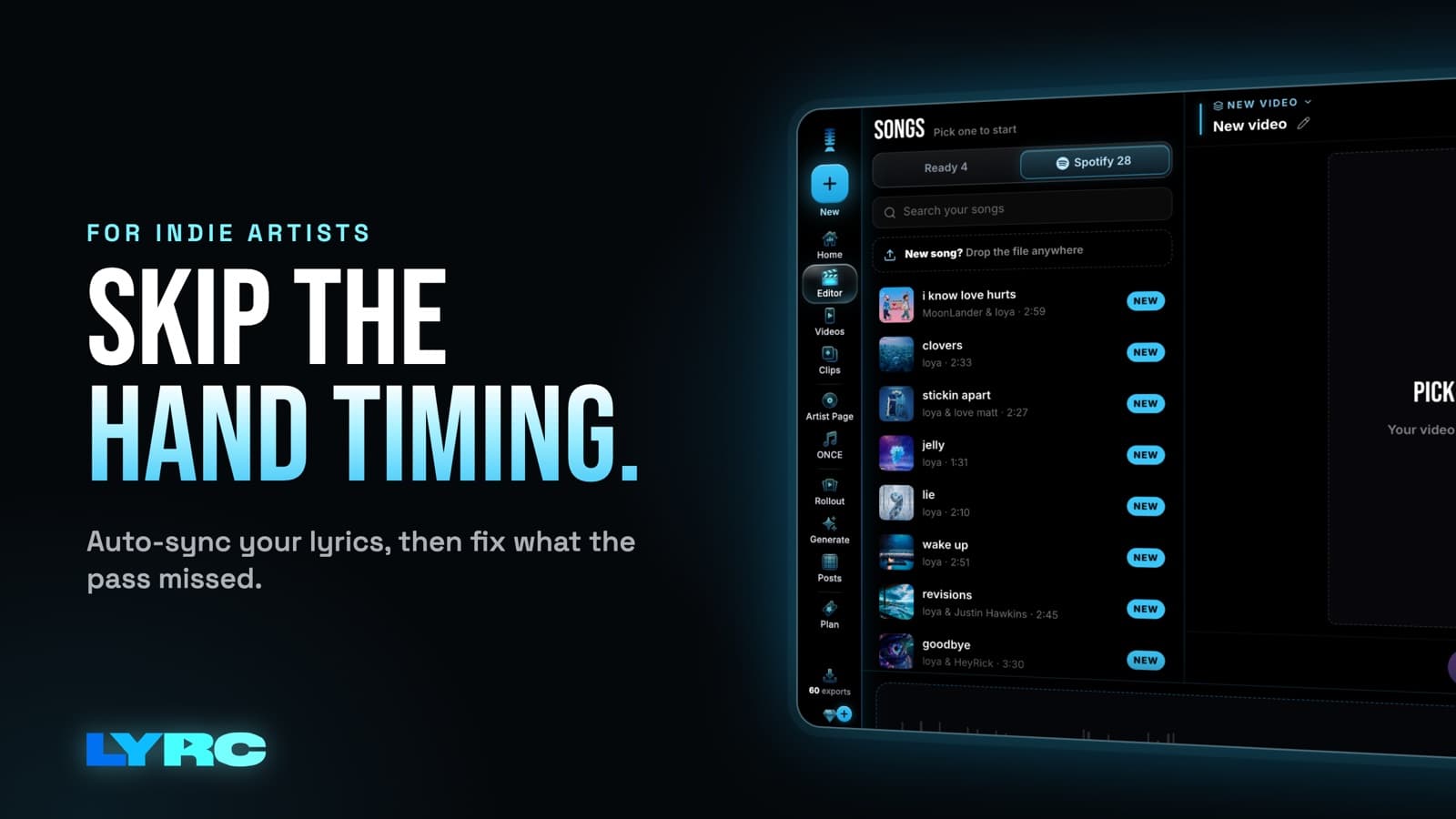
- Upload and trim. Drop in an MP3, M4A or WAV, or pick one of your released songs from Spotify. Choose a section of up to 30 seconds, usually the hook.
- LYRC transcribes and times the lyrics. Pick Quick Sync or Studio-Grade, then review and fix any word or its timing.
- Cut markers land on the beat. LYRC finds the kicks, claps and points of emphasis and drops a cut marker on each. Add, remove or nudge any of them.
- It saves as a song template. Lyrics, timing, cut markers and style are stored, so the next video of this song starts in one tap.
- Fill every slot. Clips come from LYRC's stock library, your own uploads, a YouTube or TikTok link LYRC splits into clips, or AI b-roll.
- Style, shuffle, export. Pick a lyric animation preset or style the text by hand, shuffle or lock clips, choose 9:16 or 16:9, and export an MP4.
The lyric video maker page shows the editor, and how to make a lyric video walks through the whole process from song to post.
Your first video export is free when you sign up. It carries a small LYRC watermark.
Make music. Not content.
Set up lyrics and timing once, then use the same song template for your next video.
Start free